

A project runner belongs to one GitLab project. Instance runners are shared across every project on the GitLab instance, which is usually not what you want for a dedicated pipeline.
The walkthrough below uses GitLab Runner v16.10.0 in Docker. Replace the GitLab URL, runner name, and registration token with your own. The screenshots use dummy values such as https://gitlab.example.com and the demo tag.
Administrators can review every runner on the instance from the admin runners page:
https://gitlab.example.com/admin/runners

Generate a GitLab Runner registration token
Open the project’s CI/CD settings and select Runners:
https://gitlab.example.com/group/example-app/-/settings/ci_cd
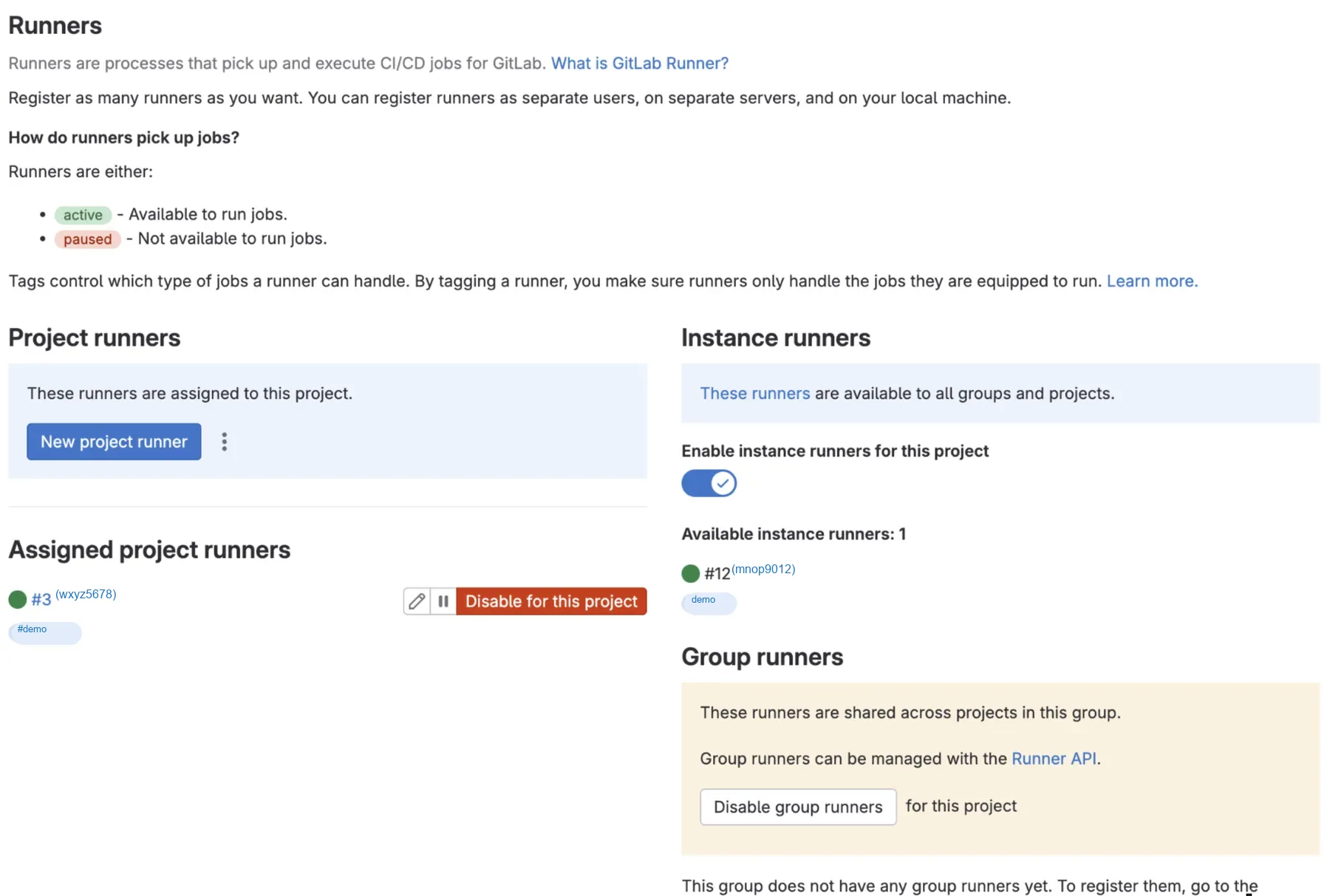
Click New project runner.
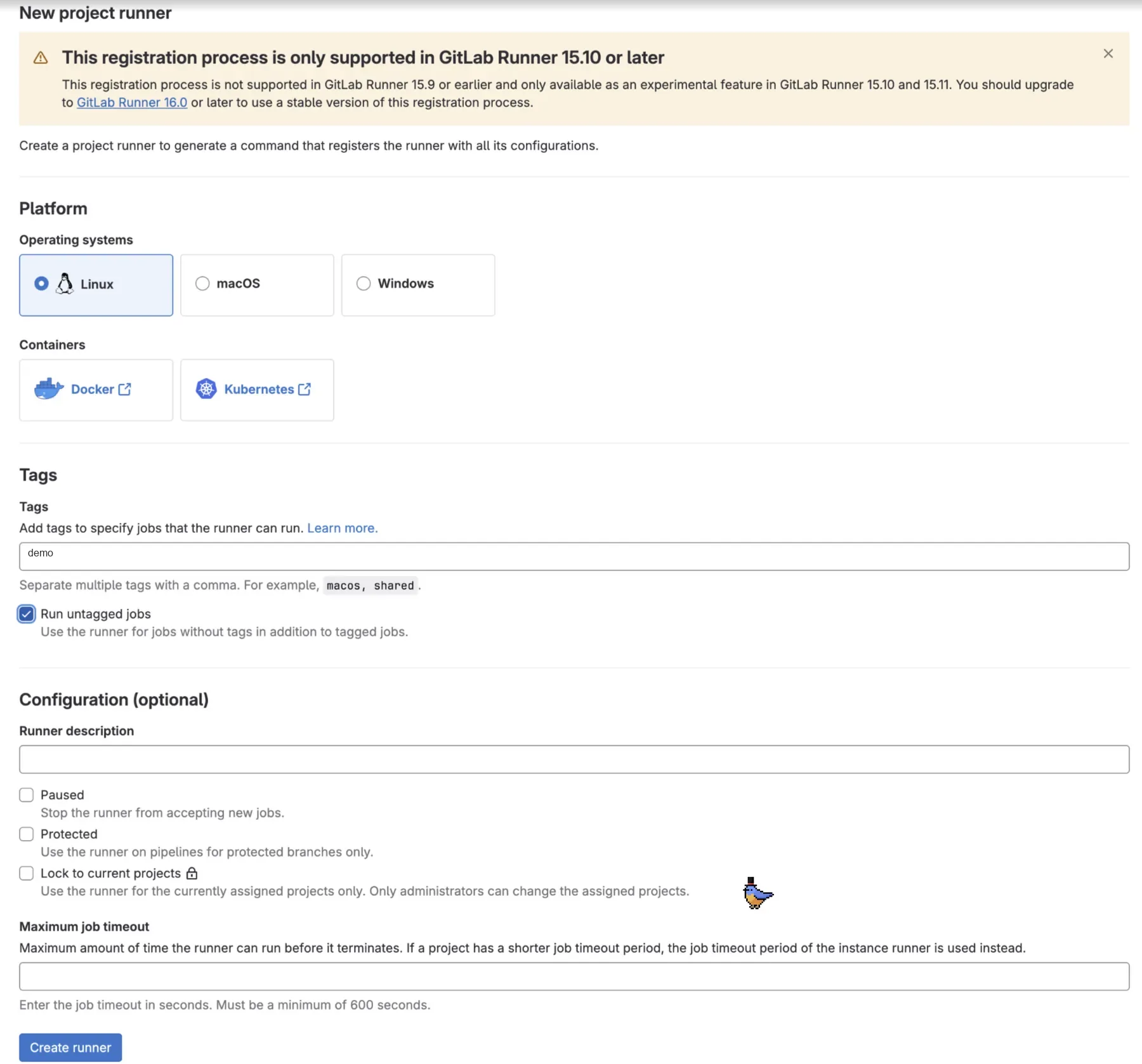
Apply those settings and click Create runner. GitLab’s new registration flow needs GitLab Runner 16.0 or later, which is why this guide pins v16.10.0. Official install notes are in the GitLab Runner Docker documentation.
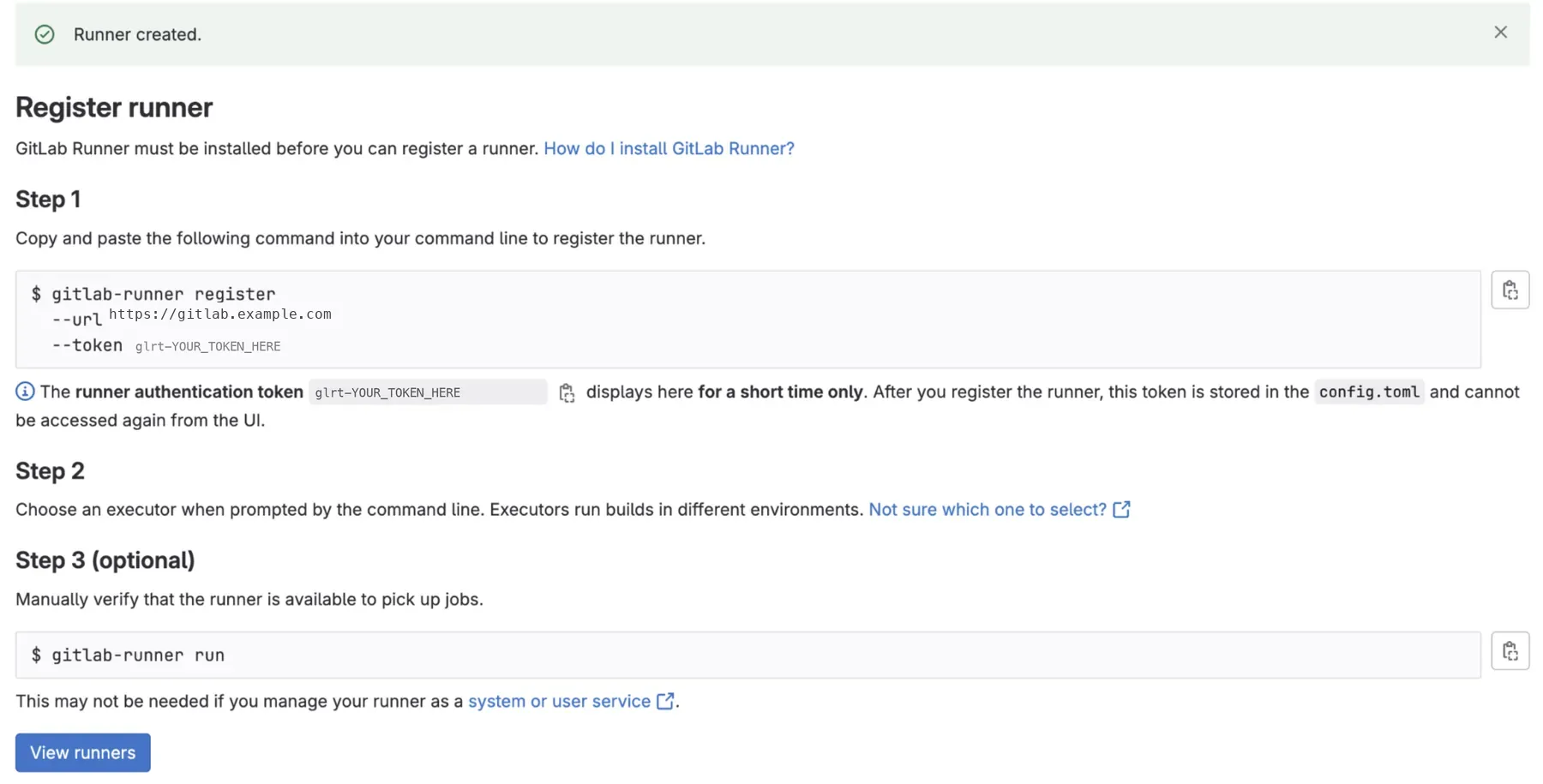
GitLab shows the authentication token only for a short time. Copy it now. You will pass it to gitlab-runner register in the next steps.
Pull the GitLab Runner Docker image
docker pull gitlab/gitlab-runner:v16.10.0Create a configuration directory
Replace YOUR with a runner identifier for this project, such as example or project-1.
mkdir -p /srv/YOUR-gitlab-runner/configEach runner on the same host needs its own name and config directory.
Run the GitLab Runner container
Use the same identifier as the config directory.
docker run -d --name YOUR-gitlab-runner --restart always \ -v /srv/YOUR-gitlab-runner/config:/etc/gitlab-runner \ -v /var/run/docker.sock:/var/run/docker.sock \ gitlab/gitlab-runner:v16.10.0Register the runner
Replace YOUR with that identifier and YOUR_TOKEN_HERE with the token GitLab just generated.
docker run --rm -it -v /srv/YOUR-gitlab-runner/config:/etc/gitlab-runner gitlab/gitlab-runner:v16.10.0 register \ --url https://gitlab.example.com \ --token YOUR_TOKEN_HERE \ --executor docker \ --docker-image docker:stable \ --docker-privilegedThe command opens an interactive prompt:
- GitLab instance URL: press Enter to keep the URL from
--url - Runner name: press Enter to keep the generated name, or type your own
- Executor: press Enter to keep
docker - Default Docker image: press Enter to keep
docker:stable
Verify the runner container
docker psYou should see the runner container listed and running.

Confirm the runner in GitLab
Open the project’s CI/CD runners settings again. The new runner should appear as assigned and online:
https://gitlab.example.com/group/example-app/-/settings/ci_cd#js-runners-settings

Important notes
- Give each runner a unique container name and
/srv/.../configdirectory so several runners can share one server. - Leave enough disk space for job images, caches, and Docker layers.
Troubleshooting
If the runner does not come online:
- Check logs:
docker logs YOUR-gitlab-runner - Inspect the generated config:
docker exec -it YOUR-gitlab-runner cat /etc/gitlab-runner/config.toml - Confirm the host can reach the GitLab instance
- Confirm Docker socket access and permissions on the host
TL;DR
mkdir -p /srv/example-gitlab-runner/config
docker run -d --name example-gitlab-runner --restart always \    -v /srv/example-gitlab-runner/config:/etc/gitlab-runner \    -v /var/run/docker.sock:/var/run/docker.sock \    gitlab/gitlab-runner:v16.10.0
docker run --rm -it -v /srv/example-gitlab-runner/config:/etc/gitlab-runner gitlab/gitlab-runner:v16.10.0 register \  --url https://gitlab.example.com \  --token YOUR_TOKEN_HERE \  --executor docker \  --docker-image docker:stable \  --docker-privileged
docker psrelated posts
-

How to Set Up SSH for Your VPS
Secure a VPS with SSH keys, safer server settings, and a repeatable remote-access workflow.
-

How to Set Up Your Own VPN on Linux
Build a private Linux VPN with a secure tunnel, server configuration, and client setup you control.